The training materials, such as the written “Learn” material, the Forum, and the videos have all been very helpful, and I really appreciate all of it. The other day I read someplace about icons in the toolbars becoming greyed out, for some reason. I cannot remember why this happens, or what to do about it. Many of the icons in my toolbars are now greyed out. Can you please remind me how to bring the icons back to life? Thank you so much.
Hi Richard!
Good question. Why are Landshape Toolbar Icons greyed out?
There are two main reasons why.

- Icon Greying. These 19 toolbar icons are greyed – because your Sketchup model contains no Landshape terrain.
Since these commands cannot be meaningfully used without terrain, they are temporarily greyed out. The point is to make it easier for you to see which commands are applicable right now.
To make these icons light up, simply add some Landshape terrain to your model. You can use e.g. Form, or Plot, or simply Paste in a Landshape terrain plot from another Sketchup file of yours.
Icons should be de-greyed immediately once you have Landshape terrain in your model.
In case it doesn’t, you can force a terrain-check anytime via:
Landshape > View > Rebuild View

- Icon dimming. These 2 toolbar icons above are dimmed – because your current Landshape license does not cover them.
To access these commands, upgrade your Landshape license. Then restart Sketchup.
To upgrade your license, click a dimmed icon, then follow the instructions.
Or visit Holygon Shop and order a higher plan.
.. I have a similar question, icons are greyed out, and I have a terrain in my model - composed earlier in the process with Holygon. But apparently it is no longer a terrain (I have done many “drape-actions to it) - how to reactivate it as a terrain?
br Bjørnar
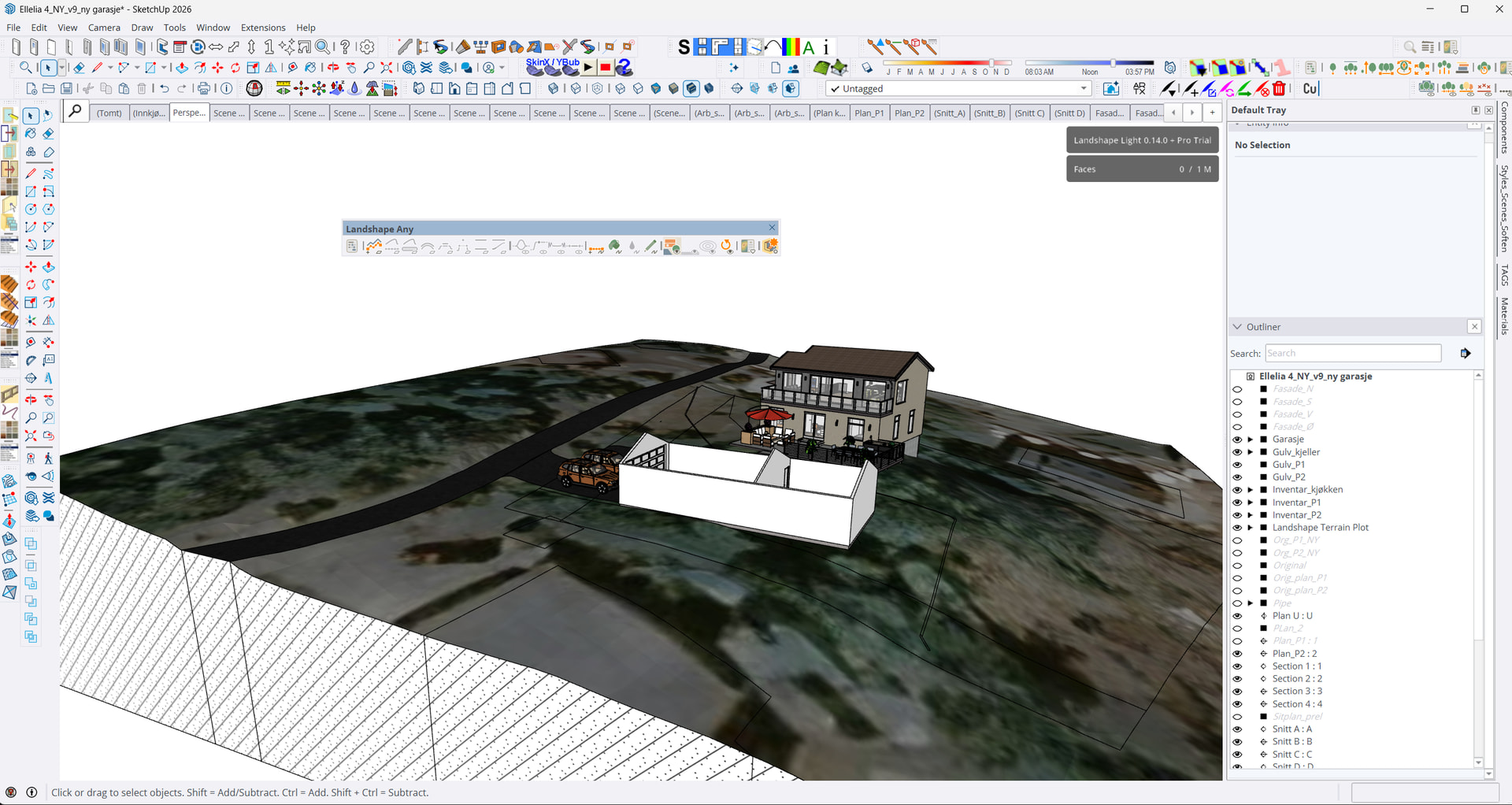
Hello Felix! I so appreciate your personal response in this instance, and all of the personal attention that you have been so generous with. I am apparently in the same boat as Mr. Bjørnar, as I do, or thought I did, have a Landshape terrain in my model, yet still have many icons greyed out. The “Rebuild View” terrain check did not fix it, but adding a new terrain with “Plot” did de-grey the icons. Is there a way I can post a link to my model here, and if so, may I ask you to take a look and see why my original terrain is no longer a Landshape terrain? Thank you much!
Welcome to Holygon Community Forum!
Yes, I’ll help you.
In your screenshot above, look in your viewport’s upper right corner. There is a dark guideplate, showing the number of Faces in your model. It says that you are currently using “0” out of 1 million faces.
That’s right, in your model, there is no Landshape terrain.
First, running Landshape’s drape commands will not edit terrain.
However, what will currently confuse Landshape, is if you start messing around with the special terrain tag Landshape Terrain.
Currently, Landshape is using this special tag to identify what is Landshape terrain, as opposed to what merely looks like it.
Generally:
- Never touch the tag
Landshape Terrain.
Specifically:
- Never untag terrain which is correctly tagged
Landshape Terrain. - Never manually tag random things with
Landshape Terrain. - Never rename the tag
Landshape Terrain.
Please note that it’s hard to tell what is wrong from just a screenshot.
But if your terrain mesh topology is fine, and faulty tagging is the only culprit here, you could try this this manual solution:
-
First, just Delete the tag
Landshape terraincompletely from your model. This makes sure that you don’t use the Landshape terrain tag on nonterrain. -
Then, manually create a new tag, and call it
Landshape terrain. -
Enter your Landshape Plot group, and select all subplot groups, and these only.
-
Assign your tag
Landshape terrainto your selection. -
Exit the terrain container, and run
Landshape > View > Rebuild.
If tagging is the only issue in your model, this approach should work.
Note that often, in case a terrain has been abused too long, such that its surface topology is messed up, it is better (and often surprisingly fast) to simply start over.
Want to learn correct tag structure? Just open an empty model, and here Plot a small Landshape terrain. Select its various parts systematically, while checking Sketchup’s Entity Info panel. This should make the correct tagging easy to understand.
In case this does not help you or you need further support, please try e.g. visiting support.holygon.com and here, share a download link to your full model file, so we can take a look at it.
• Does this help?
@Richard – You can try the solution advised above for our other friend in need.
Yes, sharing a model makes it much easier for Holygon to support you, as opposed to merely a screenshot.
To share a model file, make a download link via some filesharing service e.g. this, then share your download link here in a forum post, or in a Forum private message, or via a private message from support.holygon.com.
• Does this help you?
here is a link to my file. In the mean time, I have solved the problem by using an earlier version of the file - where the terreain still works - but it would be nice to pinpoint what is wrong with the present file where the icons are greyed out.
[…]
… sorry - the last lnk I sent was wrong one (had tampered with the Tags) - use this one instead and disregard the former… sorry
Thank you for uploading your model.
When you upload a model, it is much easier for us to help you. As they say: One 3D model is worth a thousand screenshots.
I can confirm that Landshape does not recognize your geometry as terrain.
You need to be using the tag Landshape Terrain.
However, you are using the tag Landscape terrain.
This is reason why it does not work for you.
See 1 image here:
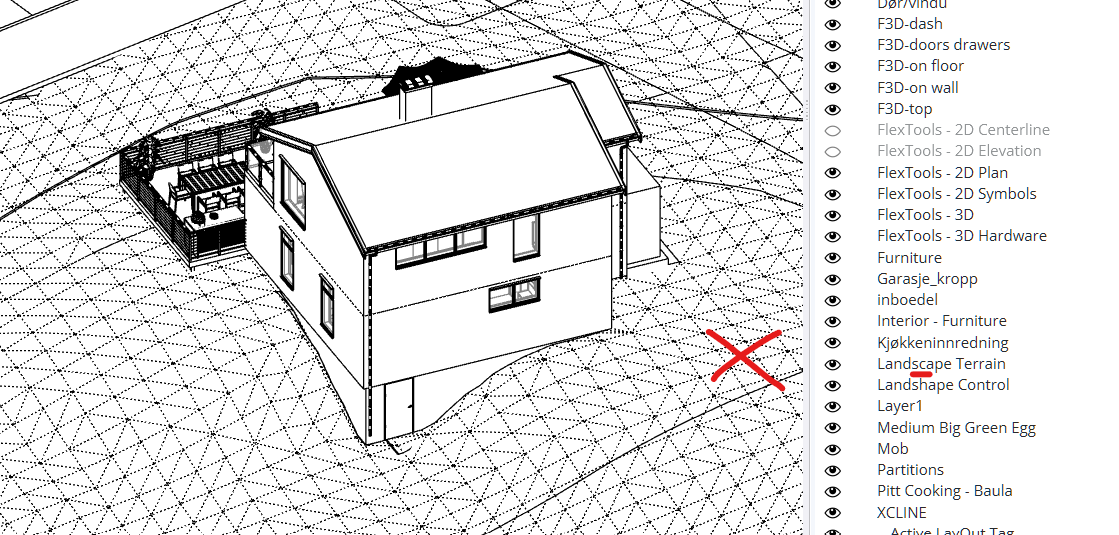
As you can see, your tag name has been misspelt.
So, to make Landshape recognize your terrain again, you can do this:
- Open your model.
- Manually rename the misspelt tag into
Landshape Terrain. - Run Landshape’s
Rebuild View.
This should solve the issue for you.
It is very easy for you to never have to encounter this issue again in the future.
Simply never touch the tag Landshape Terrain.
Thanks a lot Felix -perfect support  - I had a strong feeling it was something stupid like this.
Learned one today - Never tamper with the Holygon tags…
BTW - Landshape are clearly the best terrain tool I ever used - thanks guys!
br
1 Like
Thank you for your kind words!
If you need anything else, let me know. We are happy to help you.