Curious if anyone has attempted to create a tunnel within Landshape. I would create the tunnel as regular sketchup geometry, but I’m not sure how one would go about removing the actual LS mesh. Let me know if you guys have any creative suggestions, thanks!
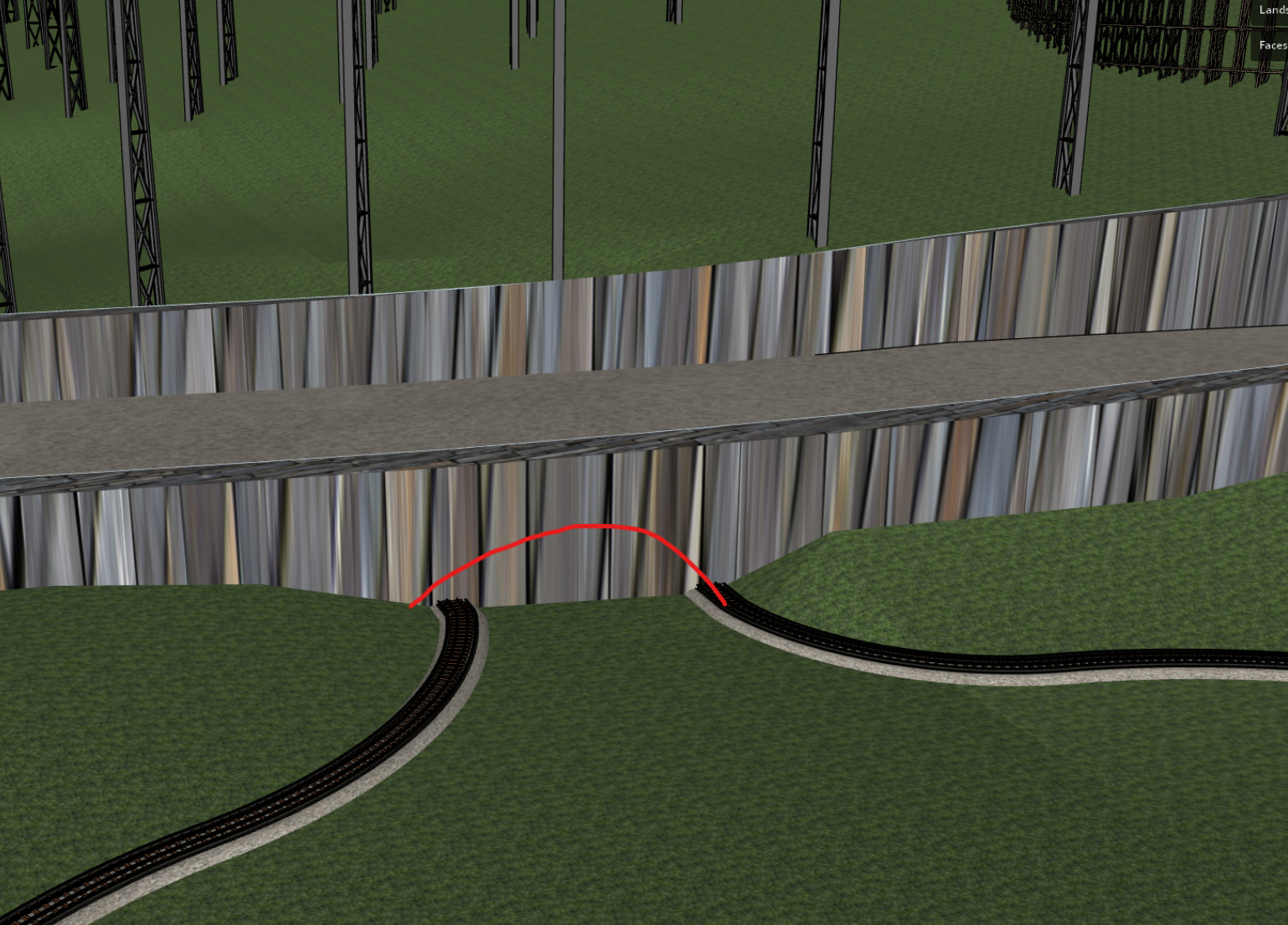
Hi Patrick –
Thanks. Yes, this is a good question.
Currently, Landshape assumes a continuous terrain mesh. Currently, Landshape does not play very well with terrain meshes containing internal holes or discontinuities.
It is simple enough to to just make a hole in the terrain surface. E.g., you can use Pick > Cut or simply enter the terrain mesh and manually select some faces and erase them.
However, please don’t cut internal holes. This is because currently, many Landshape commands and tools will stop working or even mess up your terrain if you apply them in a terrain containing surface holes.
This current limitation admittedly makes it harder to design tunnels that need to penetrate the terrain surface.
However, there is a simple trick.
You can simply paint corresponding terrain faces with a fully transparent material.
This workaround makes what in reality is a continuous terrain mesh look like a hole.
Around and inside this hole, you may put regular non-terrain Sketchup geometry. This way, the viewer will see the trimming around and the conents inside of your tunnel, or whatever feature you are looking to show.
Something like this:
-
To define a sharp border around your transparent-material Zone, first
Embedthe edges that you want to make up the perimeter around your void. -
Create a new
Sketchup material. Make it 100% transparent. Call it something like “Void”. -
Paint the area inside of your border. If you’re using a Siteplan, you can paint your terrain using Landshape’s
Zonecommand. Or, if you could try Landshape’sFilltool. Or, you can even enter the terrain group and manually paint faces with Sketchup’s Paint tool.
See 2 quick concept screenshots:
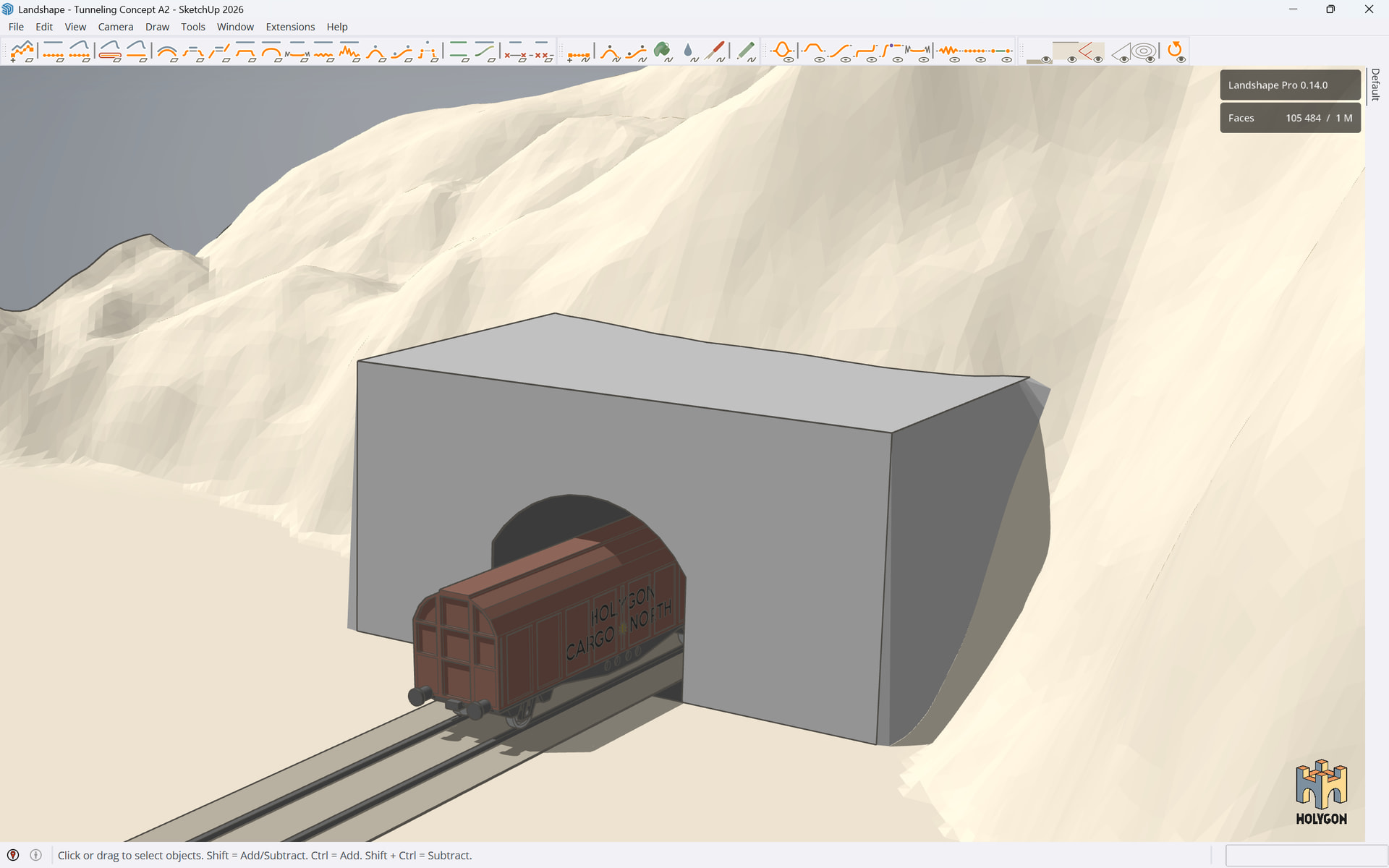
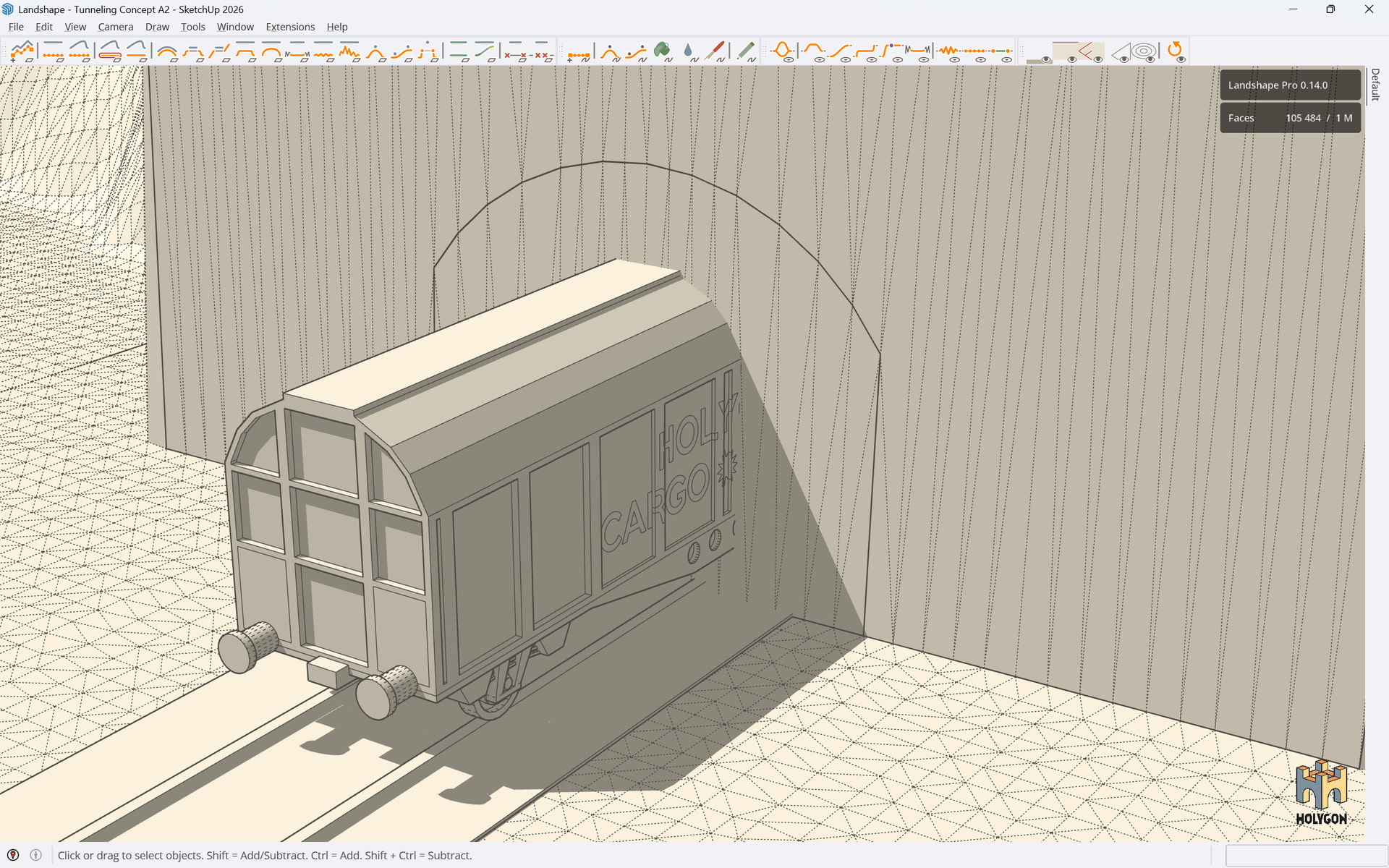
Is this a helpful workaround?
Thanks Felix,
This makes total sense.